3 min read
Do you miss the look of old Outlook? Well Microsoft just made your day and have given you the ability to live in the past!
If your team has moved over to the new Outlook and the grumbling still hasn't died down, you are definitely not alone. We hear it a lot, and it's never really about features, it's about muscle memory. Things aren't where they used to be, the icons look wrong, and people just don't like change.
Microsoft has listened and provided a most welcome option for those who like the way things used to be. They've added a setting that restyles the new Outlook so it looks like the old Outlook! Hoorah!
- Do I have to move to new Outlook?
- The hidden setting that does most of the work
- What does it actually change?
- What it doesn't change
- Four more settings worth a look
Do I have to move to the new Outlook?
Before you change anything, it's worth knowing where you actually stand, beca use there's a lot of confusion about this.
Classic Outlook for Windows is supported until at least 2029. Microsoft have also said they'll give IT administrators at least twelve months' notice before the retire it. In fact they'll give notice both before the new Outlook becomes the default and again before the option to switch back disappears.
So nobody is being pushed anywhere this week. If you've already moved, everything below will help. If you haven't, there's no rush.
The hidden setting that does most of the work
It's called Classic Outlook style, and it rolled out in stages between September and October 2026. It works in the new Outlook for Windows and in Outlook on the web.
To switch it on: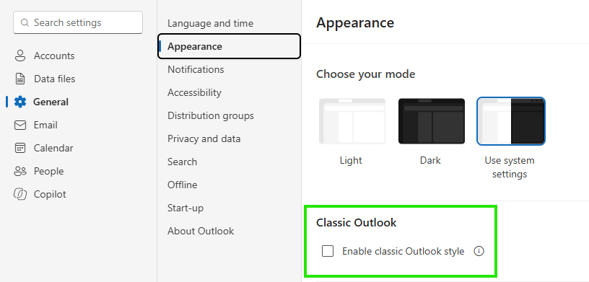
- Open Settings (the gear icon, top right)
- Go to General
- Select Appearance
- Switch on Enable classic Outlook style
Most people will find it turned off. If you were moved across from classic Outlook, you might find it's already on.
What does it actually change?
Quite a lot more than you'd expect from one toggle!
- The title bar drops the patterned design and goes back to a plain background
- The icons on the left go back to monochrome outlines, and the old multicolour Outlook logo comes back too
- The ribbon gets Send/Receive and Undo buttons, much like the old Quick Access Toolbar
- The folder list tightens up and loses the icons next to Inbox, Drafts and the rest
- Your email goes back to being grouped by "Yesterday" and "Last week" instead of by month
- The calendar gets its classic ribbon buttons back, including Today and Next 7 Days
- The compose window gets its Message, Insert and Format Text tabs again
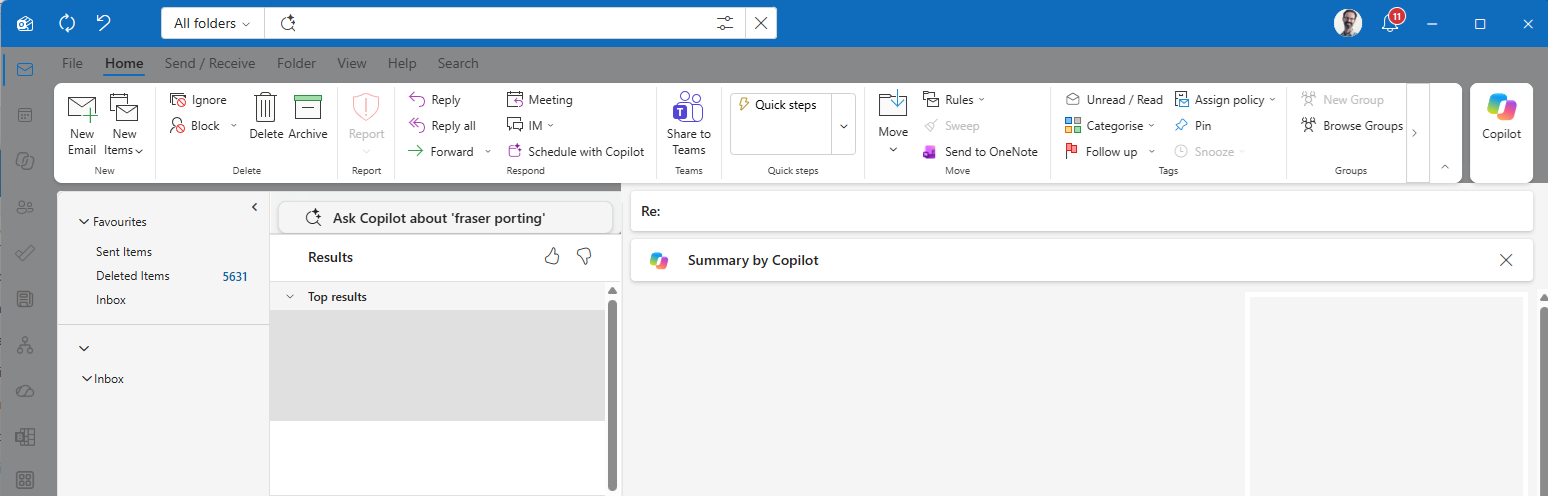 Classic Outlook
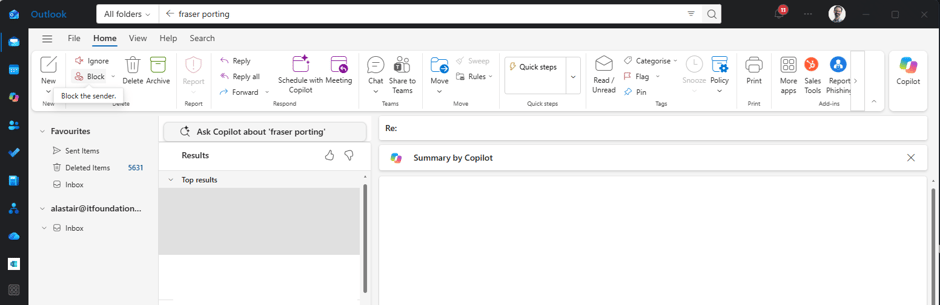 New Outlook
When classic style is on, the settings menu moves into the File menu, which is exactly where it lived in the old Outlook.
One other thing to know: with classic style switched on, the Themes section gets greyed out. So you can have the classic look, or you can have a custom theme, but not both.
What it doesn't change
This is a visual restyle and it doesn't pretend otherwise. Underneath, the new Outlook is still the new Outlook. It's a web-based application running in a container rather than the old desktop program rebuilt from scratch.
It also doesn't touch anything that matters operationally. Your mailbox data, your permissions and your existing features all stay exactly as they were. It won't move anybody from classic Outlook to the new one, and it has no effect on classic Outlook at all.
Four more settings worth a look
The classic style sorts out the look of things. These ones sort out the habits.
Density. You'll find this under Appearance as well. Set it to Compact and you'll fit a lot more messages on screen, which is much closer to how classic Outlook felt.
Focused Inbox. If your team never took to having their mail sorted for them, you can turn this off in the Mail layout settings.
Conversation view. Classic users often prefer to see messages listed individually rather than bundled into threads. You can change this so each message shows up on its own.
Reading pane. Move it to the right, or turn it off completely, so it matches however people were used to working.
We've written a bunch of blogs helping you get the most out of Outlook. Check them out below:
Next Steps..?
In our experience, pushback on the new Outlook is rarely people being difficult. There's a real productivity cost while everyone relearns something they used to do without thinking about it, and that's frustrating for them and for you. Ten minutes on these settings gets most of that back, and it tends to settle things down faster than another round of reassurance does.
It's also much better done as a group than leaving everybody to stumble across it on their own. One person showing six colleagues takes no time at all.
If you're weighing up a move to the new Outlook, or you've already made the move and it isn't going smoothly, then we can help. A short session walking a team through these settings usually saves far more time than it takes. Just get in touch with your team of experts today.
