5 min read
There are settings in Outlook and Teams that can give you breathing space between meetings.
If your working day feels like one Teams call rolling straight into the next, you’re in good company. One meeting ends, the next begins, and eight hours later you’ve been in conversation all day with no drink, no snacks, no time to prepare for each conversation, and definitely no time to act on any of it.
The good thing is that Outlook has an answer to this. The odd thing is that hardly anybody knows where it lives.
- The problem with back to back meetings
- So, how do you fix this?
- What can Teams do about it?
- What about Travel time?
- The biggest issue
- Taking it further with automation
- Next steps..?
The problem with back to back meetings
Meetings usually get booked into standard slots: half an hour, an hour, sometimes longer.
Because the slot is an hour, the meeting takes an hour, which means there’s nothing left over for:
- Writing up your notes
- Doing something about the actions
- Reading the agenda for the next one
- Making a cup of tea
- Thinking for five minutes
None of those are optional extras, but they’re the first things to go when the diary is full, leaving you feeling very exhausted and behind in your day.
So, how do you fix this?
The answer is by adjusting the length of meetings!
In new Outlook and Outlook on the web:
- Select the Settings gear icon
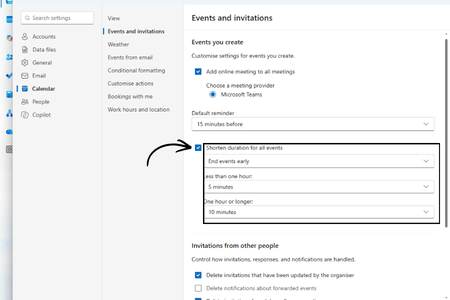
- Go to Calendar
- Open Events and invitations
- Tick Shorten duration for all events
- Use the dropdowns to set the number of minutes for events under an hour, and for events of an hour or more, then Save.
We’d go for five minutes off anything under an hour and ten minutes off anything longer.
One thing worth knowing: the setting applies to one email account at a time. If you’ve more than one account in Outlook, you’ll need to set it on each.
You can also choose to start late rather than end early, if that suits how your team works better. We’d still recommend ending early, for the reason above.
In classic Outlook:
Go to File, then Options, then Calendar, and look for the Calendar options section. You’ll find Shorten appointments and meetings there, with the option to end early.
(If you’re still on classic Outlook and wondering how long you’ve got, we wrote about that in our blog on the topic of making new Outlook look like Classic Outlooks — the short version is that you’re supported until at least 2029.)
As an important side note, it's worth saying that your Teams calendar and your Outlook calendar are the same calendar. Once you have set this once, every Teams meeting you book gets the buffer automatically, whether you created it in Outlook or in Teams.
What can Teams do about it?
Outlook handles the shape of your diary, while Teams handles whether anybody can interrupt you while you’re in meetings, and the Teams settings are worth a look.
Quiet hours on your phone. If Teams notifications follow you into the evening and most of the weekend, you can switch them off on a schedule.
Open the Teams mobile app, tap your profile picture, then Notifications, and choose Block during quiet hours. From there you can turn on Certain hours to pick the times of day to mute, and All day to pick whole days of the week.
Two things to know. First, it silences notifications on your phone only, so your desktop carries on as normal. Second, nobody is told your notifications are muted, so if you want people to know you’re unavailable, set a status message as well.
There’s also an option to sync the schedule across Teams and Outlook mobile. It is worth noting however that once you’ve turned that on, it can’t be reversed.
Focus time that Teams respects. If you’re using Viva Insights, there’s a focus plan that books up to four hours a day of protected time in your calendar and, if you want it to, silences your Teams notifications and mutes chats while that time is running.
You’ll find it in the Viva Insights app under the Wellbeing tab. Look for the “Start a daily focus plan” card. When you set it up you choose how many hours, whether you’d rather mornings or afternoons, and whether Teams goes quiet during it.
That last option is the one that makes the difference. A focus block that still pings at you isn’t really serving the purpose.
What about travel time?

This is the question people to jump to next, and the answer is .. well, a bit disappointing.
Outlook unfortunately won’t work out your journey and block the time out for you. There’s no native feature that looks at the location on a meeting invitation and reserves space either side of it. There are third-party add-ins that will do it, if it’s a big enough problem for your business, but nothing built in.
So for anything that involves getting in a car, train, plane or bus, the workaround is to do it by hand:
Travel → Meeting → Travel
Mark those travel blocks as Busy rather than Free. Otherwise colleagues will see that time as available in Scheduling Assistant and book straight over the top of it, which completely defeats the purpose.
The biggest issue?
Shortening meetings helps, but it’s treating a symptom. For most people the real difficulty is that their calendar is something that happens to them rather than something they’ve designed.
A handful of rules makes a surprising difference, and none of them require anybody’s permission:
Standardise your meeting lengths. Thirty becomes twenty-five, sixty becomes fifty. Once a few people do it, it spreads.
Put travel time in for external meetings, realistically rather than optimistically.
Protect time either side of the ones that matter. Fifteen minutes before a customer meeting or a presentation to get your head in it, and fifteen minutes afterwards to capture the actions while you still remember them can be huge helpers - especially when diarised.
Defend one proper focus block a day. Two uninterrupted hours for the work that actually needs thinking about and, if you can, make Teams go quiet during it - a focus block you get interrupted in isn't much help.
Keep your lunch. We realise this sounds like the least technical advice we’ve ever published. However, it’s also one of the most effective things on the list.
Try meeting windows. Rather than letting meetings land wherever there’s a gap, set periods for them, for example: mornings for internal collaboration, early afternoon for customers, late afternoon for focused work. It cuts down the context switching enormously.
If you want more in this vein, we’ve written separately about seven things you can do to work more productively.
Can any of this be automated?
Up to a point, yes. If you’re on Microsoft 365, tools like Power Automate can be used to build some of these habits into the system rather than relying on everybody to remember them such as adding travel blocks around external meetings, for instance, or creating preparation time before customer calls.
That’s a bigger piece of work than ticking a box in settings, and it’s only worth it if the habits are already agreed. If you’re curious how that sort of thing is built, our Introduction to Power Automate blog is a good place to start.
Next Steps..?
Most people assume the answer to too many meetings is fewer meetings, and sometimes it is. But managing them better gets you a surprising amount of the same benefit without anybody having to be told they’re not invited any more.
Twenty-five and fifty minute meetings, a protected focus block, and a bit of space either side of the important ones will create room in your week without reducing how much your team actually talk to each other.
If your team’s calendars have got away from them, or you’d like a hand setting these defaults across the business rather than one person at a time, then we can help. Just get in touch with your team of experts today.
