4 min read
Most of us have live links to files we'd completely forgotten about. Here's how to find all your links in about five minutes.
Have a think back over the last year or so.
That spreadsheet you sent a supplier. The folder you opened up for a project that finished in the spring. The document you shared with somebody at a client who’s long since moved on.
Every one of those links is almost certainly still live and working.
Here’s the thing. Sharing a file isn’t really like sending an attachment, it’s more like cutting somebody a key. An attachment is a copy of how things looked that day and that’s that. A link is a way in to the live document, and it persists as a way in to your environment until somebody takes turns it of.
Which almost nobody ever does, because almost nobody knows they can go and look.
- How do you see what you have shared?
- Put an expiry date on the next one
- The sneaky catch
- Next steps..?
Why is this worth worrying about?
It’s not necessarily about anybody doing anything sinister (although it can be).
It’s more about the fact that the contents of that sharing link might have expanded since you sent it. You share a folder with someone, forget or another team member isn't aware, and something new gets added to the folder that shouldn't be shared. And there's problem number one.
The second problem is that somebody can potentially still access a shared file or folder many months or years after you stopped working together. Depending on how diligent the IT dept of the other person is, they may even still be able to access it after they've left their former employer.
And if those files hold anything you’d rather not have to explain like client details, staff information, commercial terms, then “we’re not entirely sure who can see it” is a pretty uncomfortable thing to be sitting on.
How do you see what you've shared?
It’s all in one place, thankfully, and it takes minutes.
- Open OneDrive in your browser and sign in with your work account
- Select Shared in the navigation down the left
- You’ll see what people have shared with you and what you’ve shared with them
- Pick any item, select the Info icon at the top right, then Manage access
That last panel is the important one. It shows every link that exists for that file and everybody with direct access, and it’s where you take either away.
What are the four kinds of sharing link?
This is an important thing to know because they’re not all equally risky.
Anyone with the link. No sign-in needed at all. Whoever’s holding it can open the file, and links get forwarded. This is the one to look hardest at and plenty of businesses switch it off entirely and we’d strongly agree with that approach.
People in your organisation. Anybody with a work account at your business. Grand for internal things, no use for sharing out.
People with existing access. Doesn’t create anything new. Just hands a working link to people who could already get in.
Specific people. The one you want most of the time. Named individuals who sign in to prove it’s them, making an unexpectedly forwarded link useless to whoever receives it.
What do you do with the ones you don't need?
Select Manage access (accessible along the top of the table when you check a file or by clicking the three dots to the right of the file name) 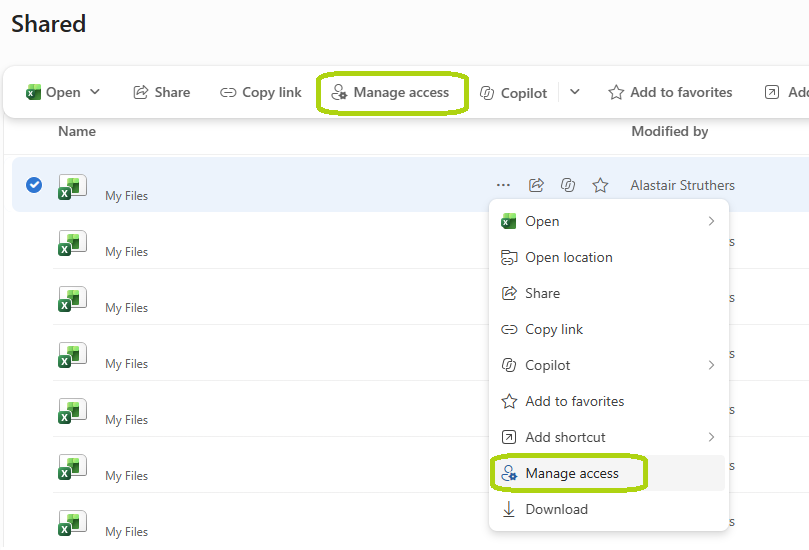 you can simply remove a link or take an individual off the list.
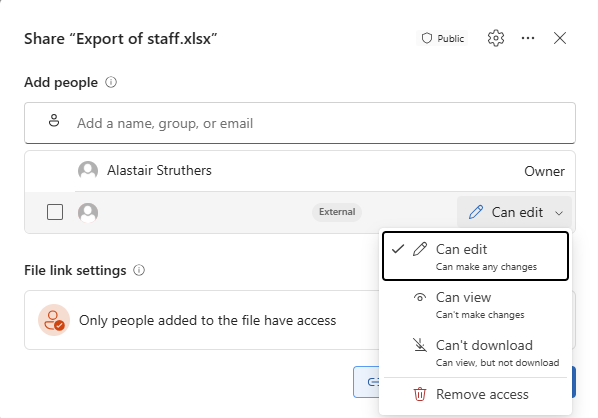
One thing to watch is that selecting Remove access kills the link for everybody, not just the person you want to remove. So, if somebody still needs that file, you'll need to share it out again with them as a named recipient.
The best place to begin with an audit is to start with finished projects and former suppliers which is where most of the risk will be.
Put an expiry date on the next one
When you share something outside the business, you can set an expiry date so the link stops working on its own. Even giving it a month covers most things and you can always extend it if need be.
When creating your sharing link, click the three dots at the top right and select Create new sharing link with an expiration date.
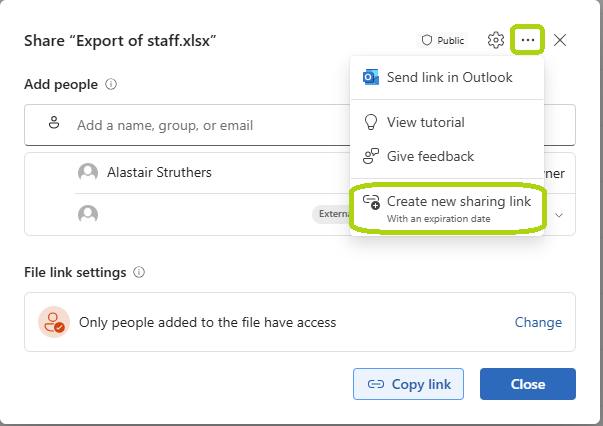
That's just two seconds at the point of sharing, and you never have to remember to come back and tidy up. Which is nice.
Importantly, links can also be set at the global level by an administrator, which means that you can set a default expiration time across your entire company removing the risk of leaving it in individual staff's hands.
The sneaky catch
This one surprises a lot of businesses. A file you drop into a Teams chat, say in a one-to-one or a group chat, rather than a channel, isn’t stored in Teams at all. Instead, it goes to the sender’s personal OneDrive. (if you're unsure of the difference, have a read of our blog that explores OneDrive, teams, and sharePoint)
What that means is that the document everyone's been working on for six months is sitting in one person’s individual storage... not in the team document structure itself. And that is a problem if they leave.
If a file matters, put it in a Teams channel or on a SharePoint site, where the team owns it rather than a person. Same number of clicks, a much better outcome.
Next Steps..?
Most businesses have never looked at any of this, and it’s simply because nobody ever told them it was there to look at.
Do it as a team rather than one person at a time. Ask everybody for ten minutes and you’ll clear out more stale access in an afternoon than any policy document has ever managed.
If you’d rather somebody took a proper look across the whole business, instead of working through it one mailbox at a time, then we can help. It’s a sensible thing to know, and it’s rarely as bad as people fear. Just get in touch with your team of experts today.
